User manual
How to order lunch, and how the caterer and the administrator run the service. Sections for staff roles appear only when you are signed in with that role.
Getting started Everyone
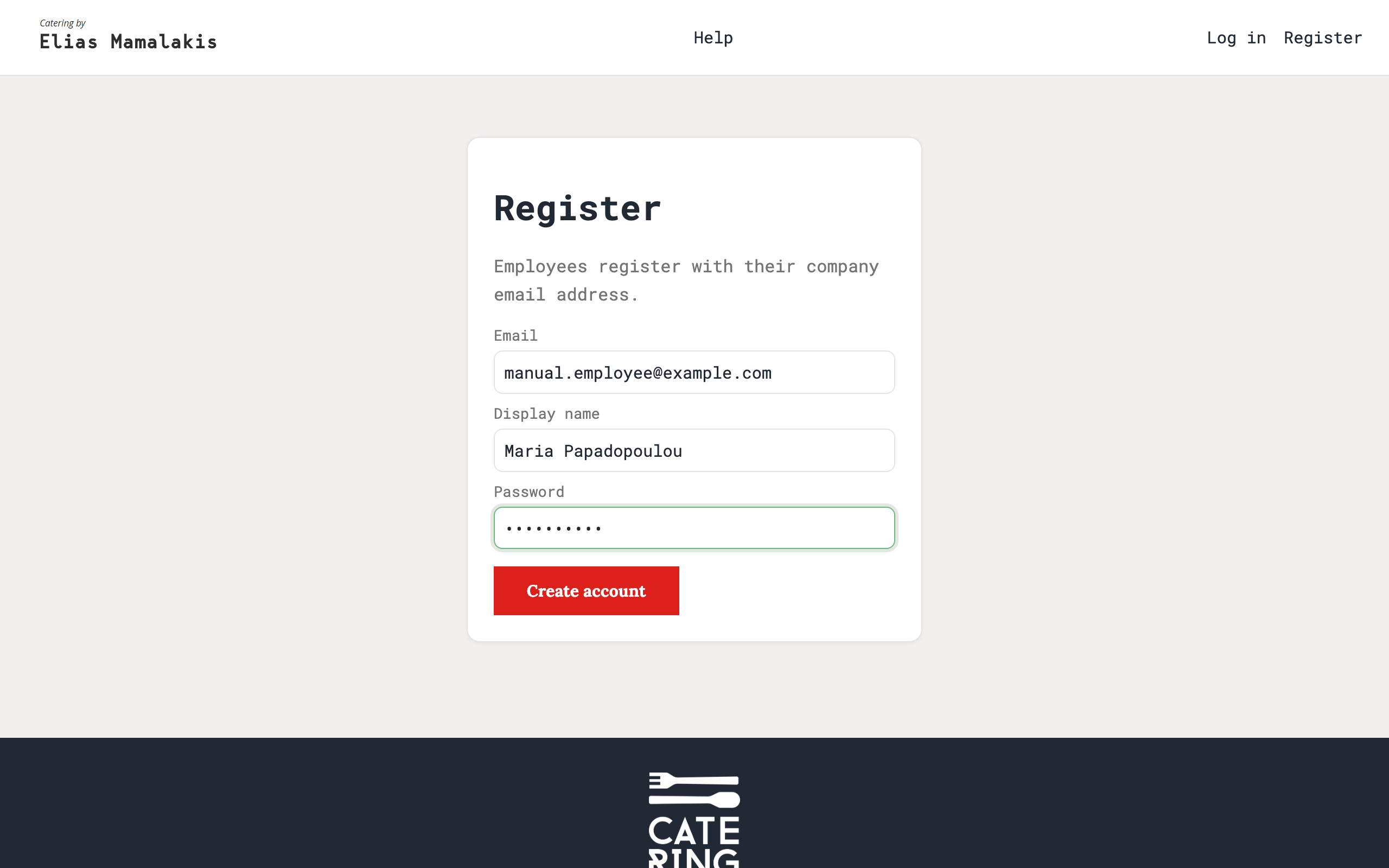
- Create your account
Choose Register in the top bar and enter your company email address, the name you want the caterer to see on your orders, and a password. Only company email addresses are accepted.
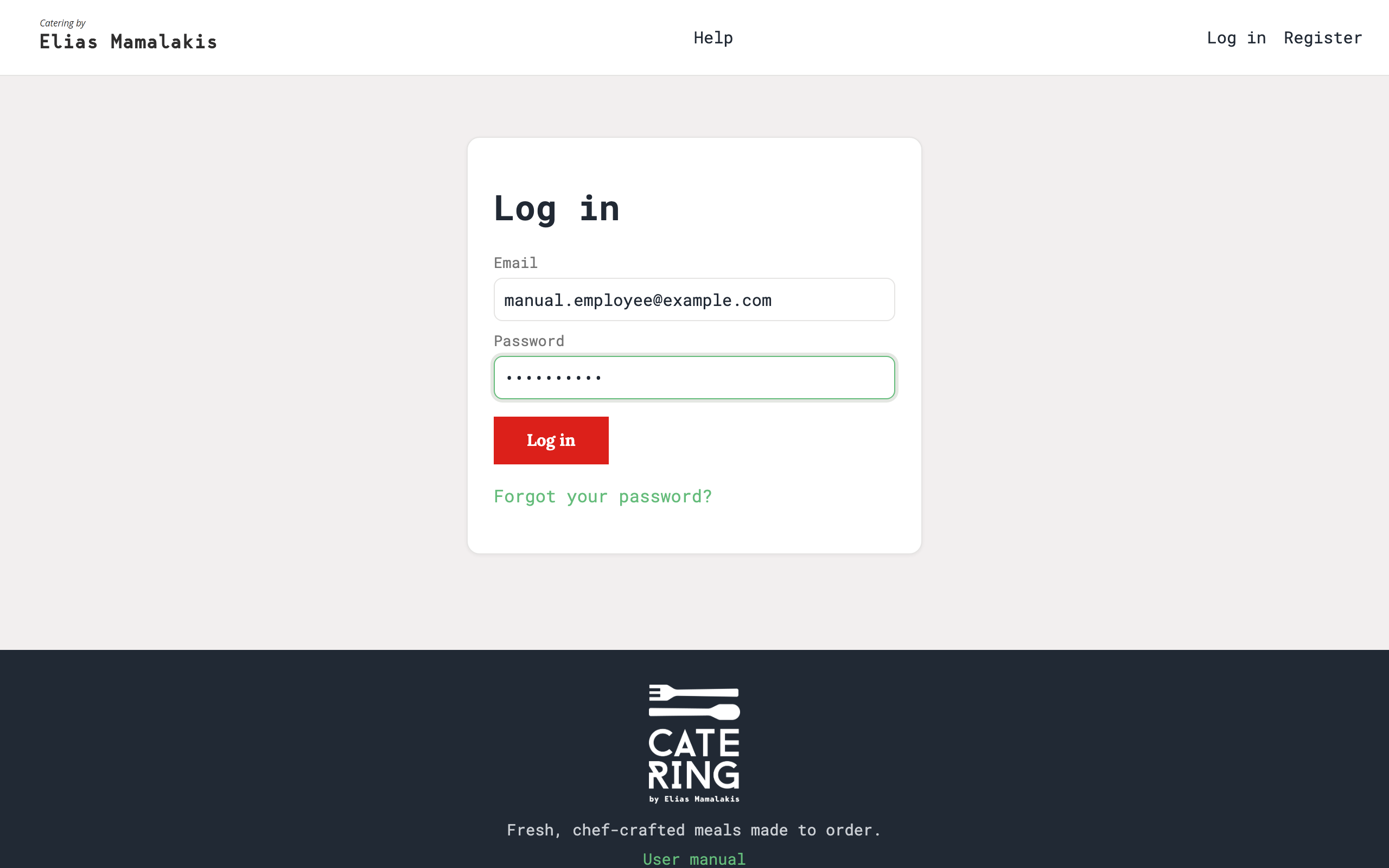
- Log in
Enter your email and password. Employees land on the menu; the caterer and the administrator land on their portals. You stay signed in for a week on the same device. After five wrong passwords the account is locked for a few minutes.
- Your account menu
Click your name in the top bar to see the email you are signed in with, your role, a link to reset your password and the Log out button.
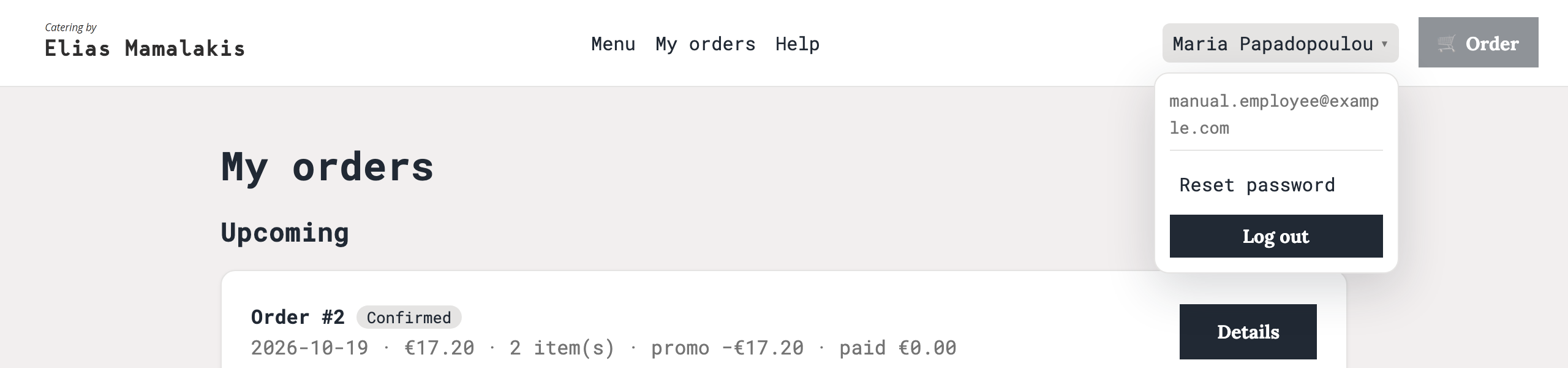
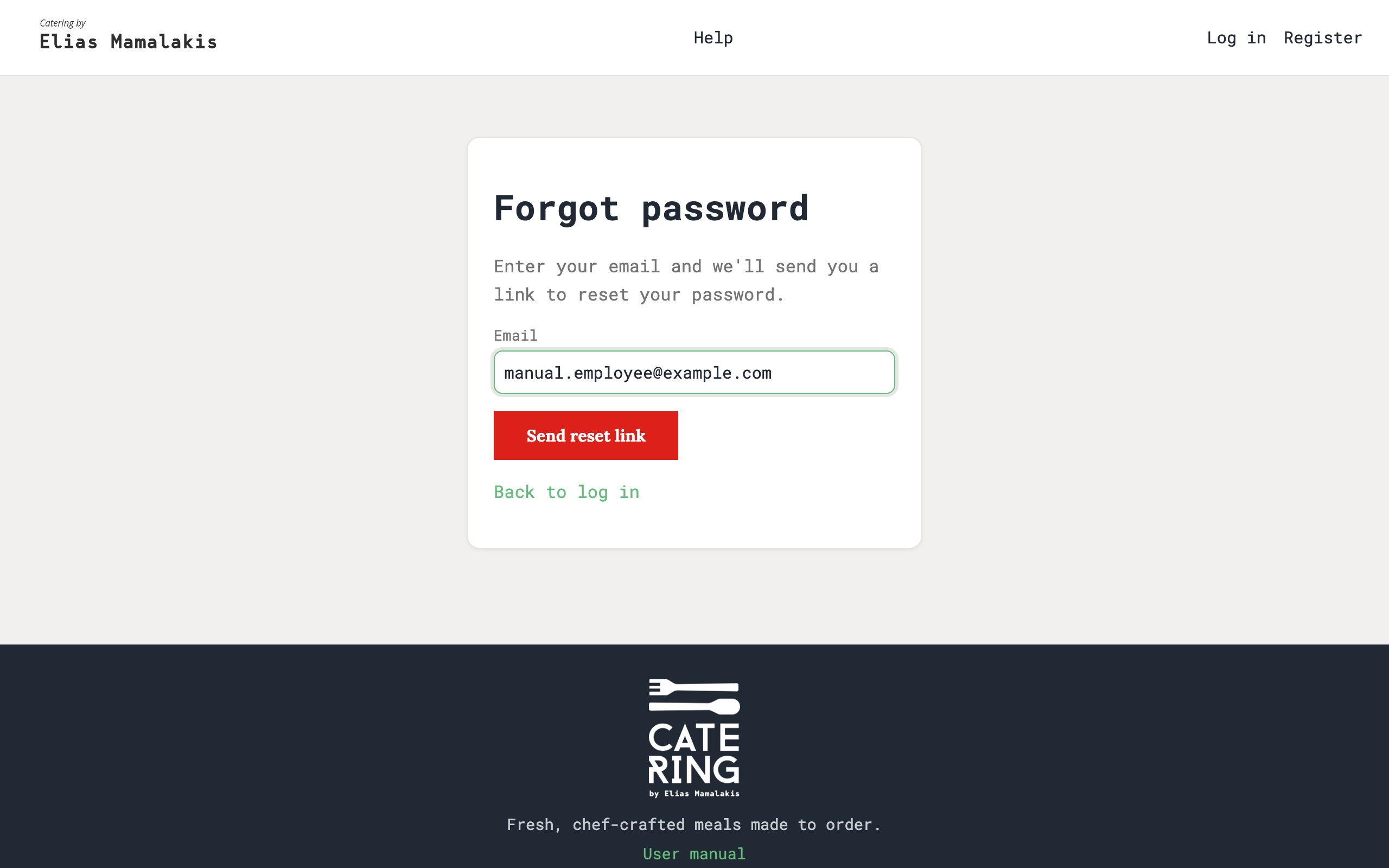
The account menu opens from your name in the top right. - Forgot your password?
Use the Forgot your password? link on the login page. Enter your email and we send you a link to choose a new password. The link expires after a short while, so use it when it arrives.
Ordering lunch Employee
- Browse the two-week menu
The Menu page shows one week at a time; use the arrows or swipe to move between weeks. Each day carries a badge: order today, pre-order, ordering closed or view only. Ordering for a day normally closes at 16:00 the day before, so order tomorrow's lunch today.
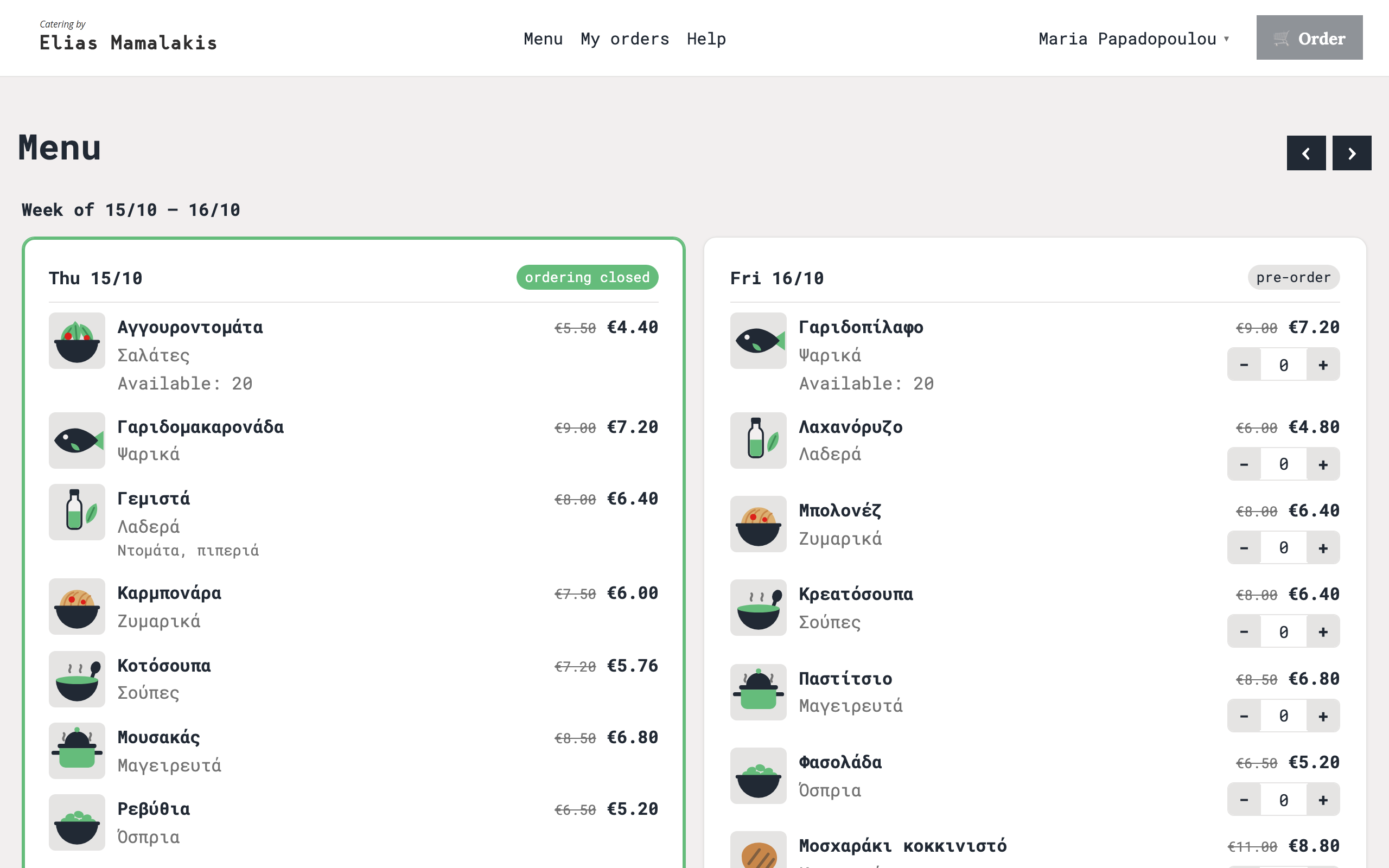
One card per day. Dishes show their category, price and, when limited, how many are left. - See the details of a dish
Click a dish's picture or name for a larger view with its description and price.
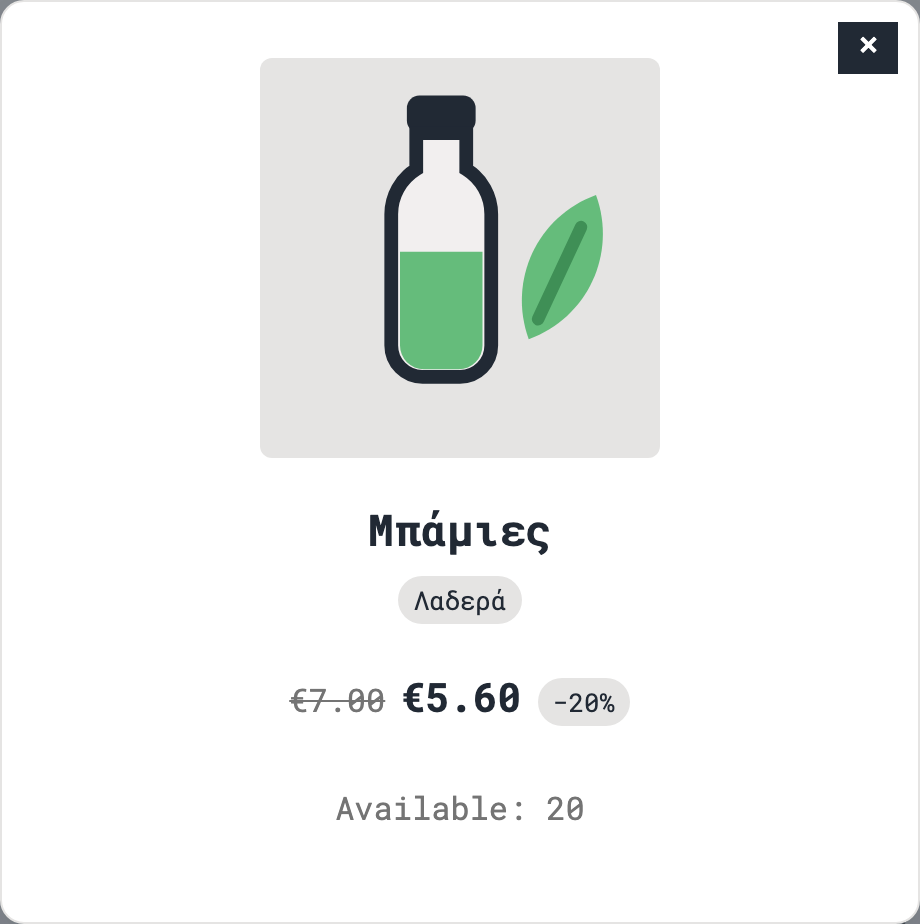
- Pick your quantities
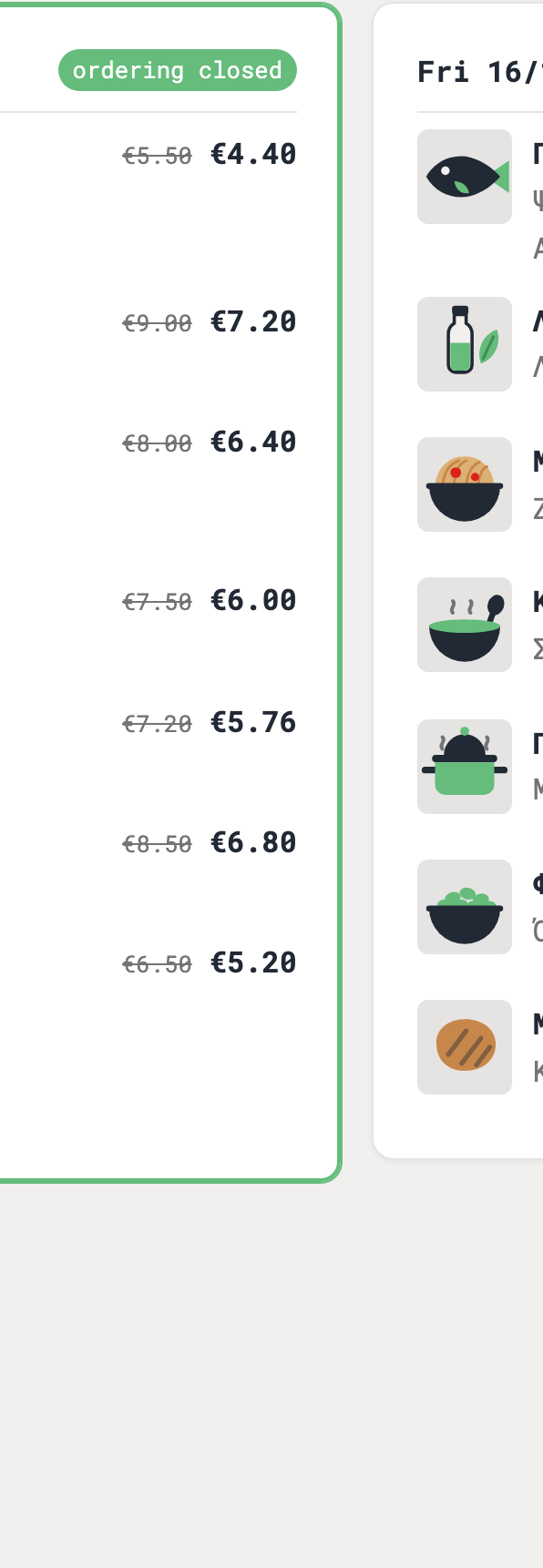
Use the + and − buttons beside each dish. The day's total appears at the bottom of the card together with a Review button. You can order for several days at once; each day becomes its own order.
- Review your order
Open 🛒 Order in the top bar (or press Review on a day). Your items are grouped by day and you can still change quantities. Lunch is delivered to the company headquarters. Type your meal subsidy promo code (
LUNCH350unless your company told you otherwise) and the discount is quoted immediately. Add a note for the caterer if you have allergies or preferences.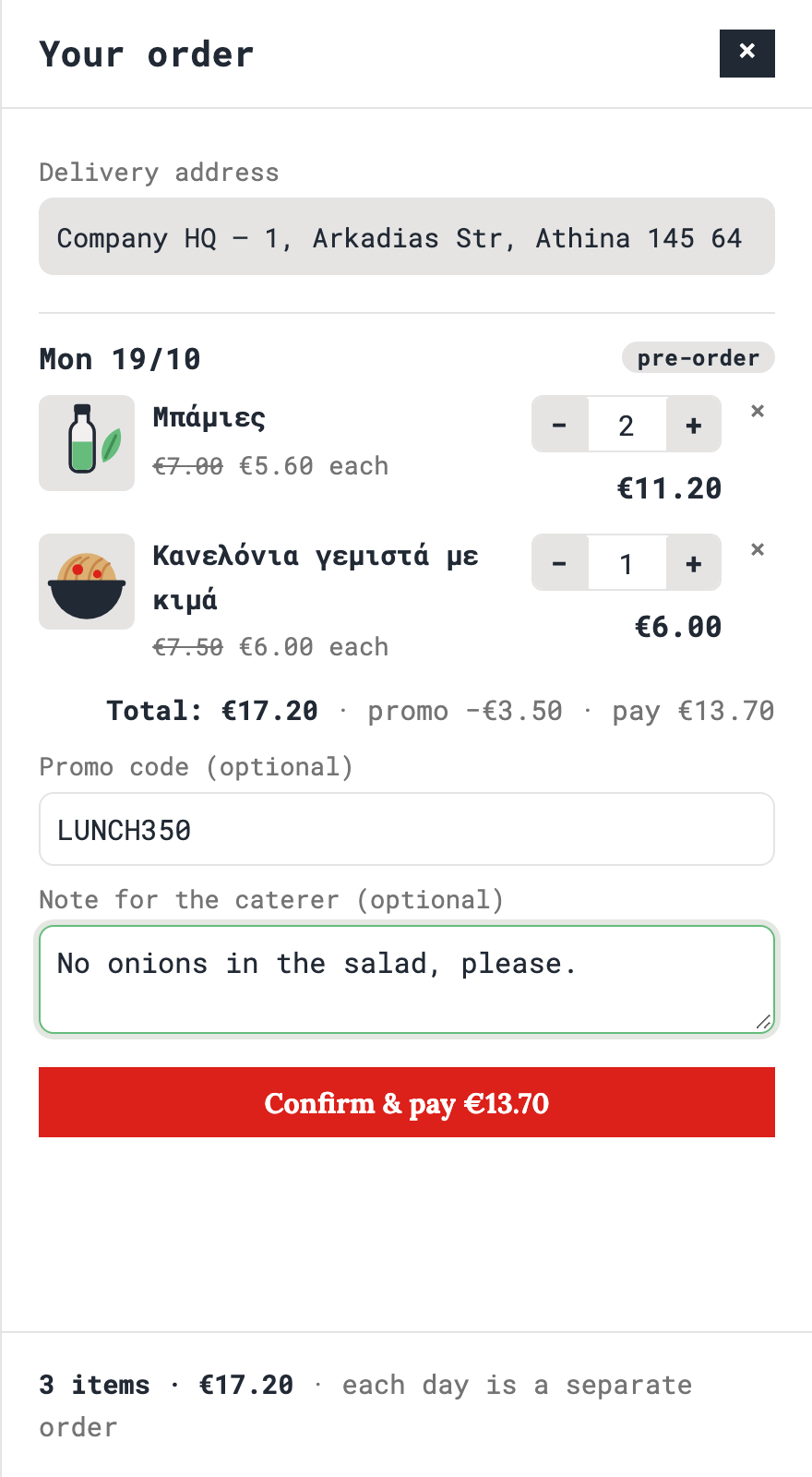
The promo code covers part of each day's order; what is left is paid by card. - Confirm and pay
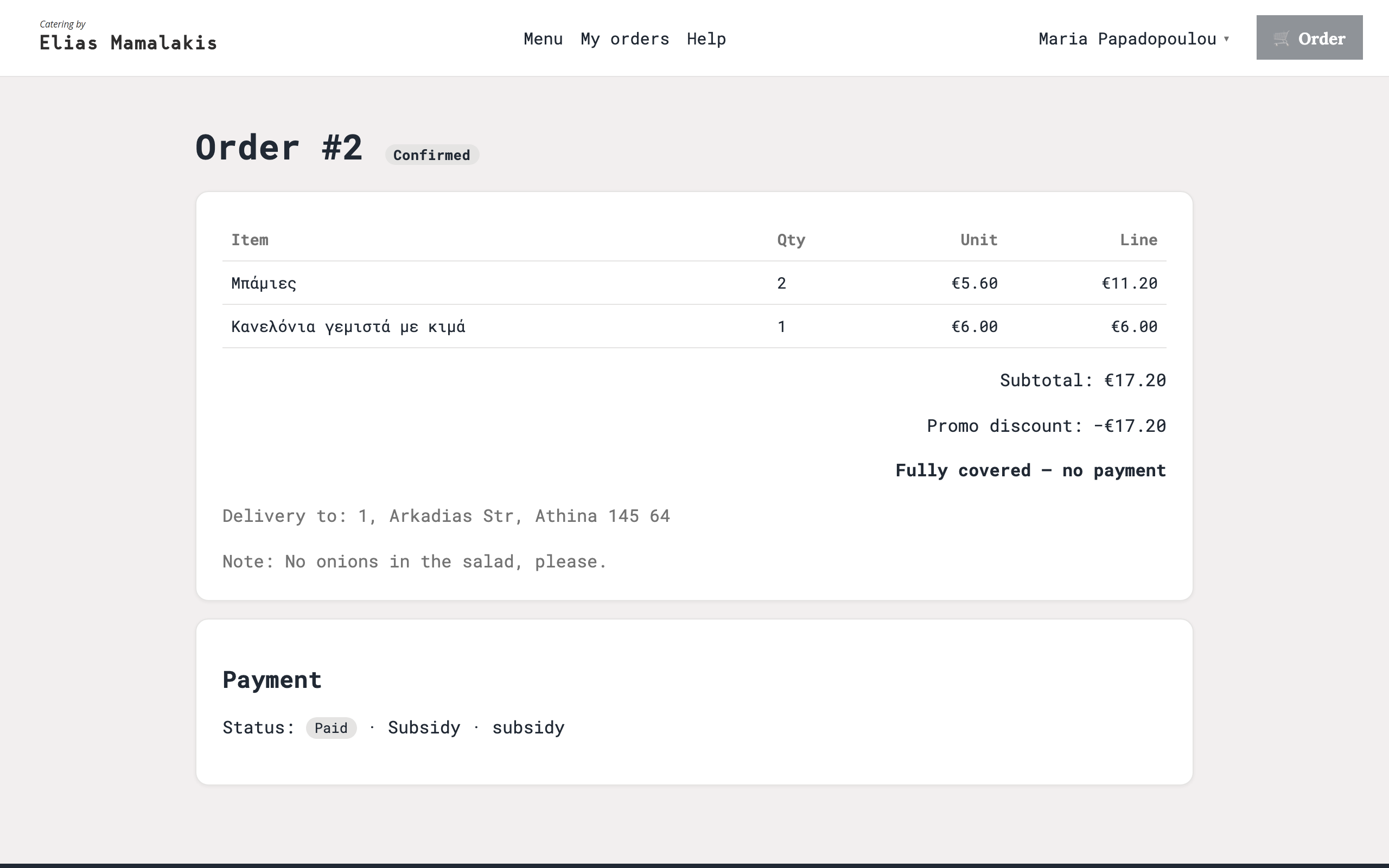
Confirm & pay takes you to the bank's secure card page (Viva). After paying you return here and the order is confirmed as soon as the payment is verified, usually within seconds. You receive a confirmation email. If the promo code covers the whole amount, the button reads Confirm order and no payment is needed.
- Track your orders
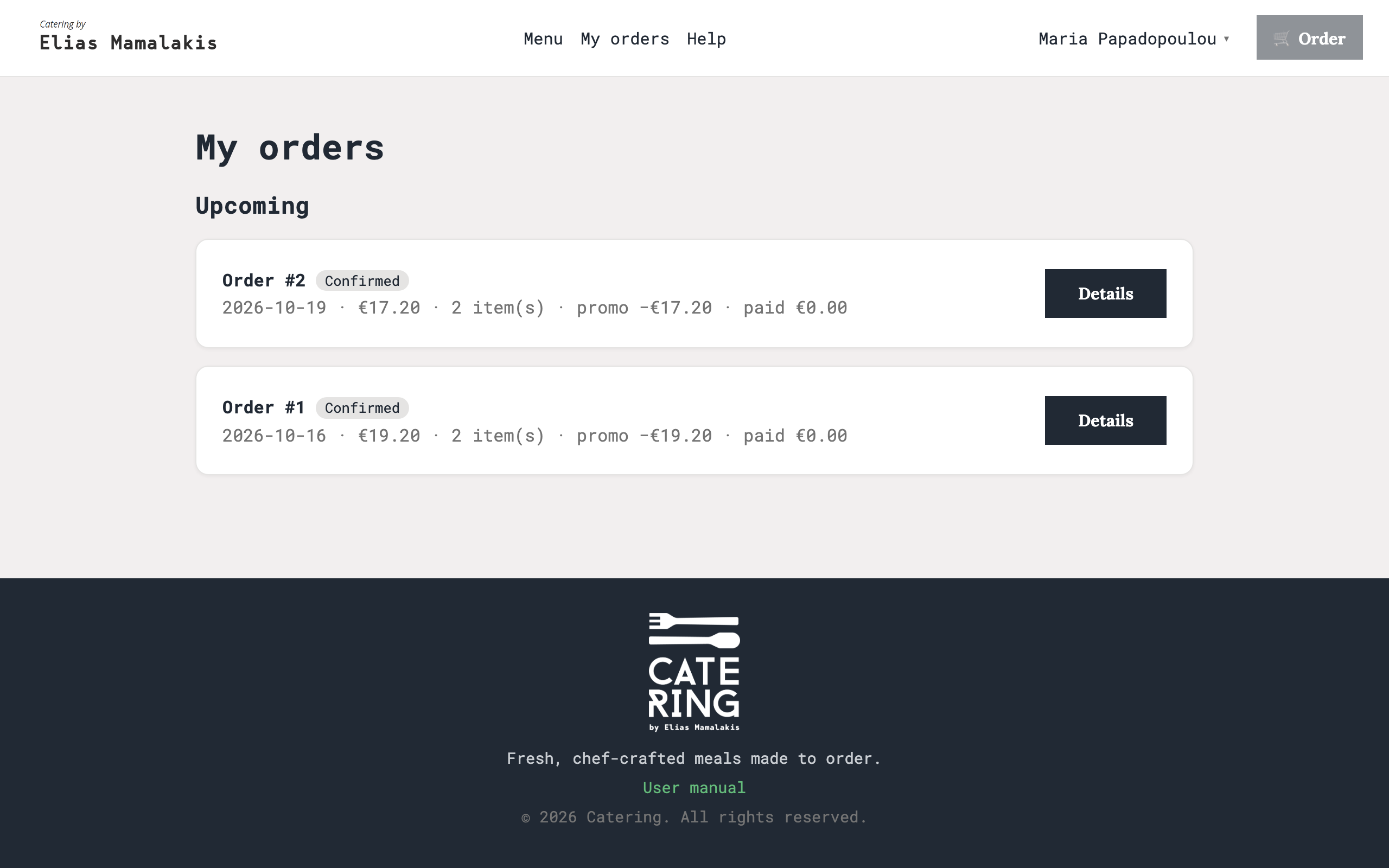
My orders lists upcoming and past orders with their status: PendingPayment, Confirmed, Preparing, Ready or Cancelled. Details shows the items, the discount, what you paid and your note.
Questions about a specific order go to the caterer. Problems with your account go to your administrator.